


This is the portfolio optimization interface we always wanted to build, and it’s live now.
Before this release, you revised your portfolio on one page and optimized it on another. Now both happen in the same place, on the same draft. It’s a place to see what a decision does before you make it.
Three things on one page, and you choose what to see
- Magpie, your optimization agent. It reads your portfolio against your own benchmark, helps you set the rules, runs the optimizer and explains every change.
- The Portfolio Workbench. Your whole portfolio as a draft you can edit by hand, right beside the chat. It replaces the old Portfolio page.
- Widgets that keep score. How aligned you are, what’s still missing, and what the run proposes, updating as the draft changes.
Set the page up the way you work. Open the chat, the Workbench, or both side by side. Show the widgets at Full, shrink them to Compact, or turn them Off. The page remembers how you left it.

There is one draft behind all of it. A change Magpie makes shows up in the Workbench. A change you make by hand is what Magpie reads next. Nothing in a draft places a trade or changes what you actually hold. Once you find a result you like, WealthFluent can create the tasks to carry out the changes. You decide, and you place any trades at your own institution.
One thing is brand new: Optimize for Tax Location. Once you have a result, it works out which account each holding fits best for taxes, without changing your allocation. More on that below. If you’re already a member, open the Portfolio Optimizer and follow along.
Magpie runs the optimization with you
You don’t have to know how an optimizer works. Magpie walks you through it in plain language.
It starts with your whole balance sheet, not just your brokerage account. Magpie’s opening analysis covers your investment accounts, a private business, your home and the mortgage against it, and your unrealized gains and losses. Then it compares your allocation with your benchmark and tells you where the big gaps are and why. A fixed-rate mortgage, for example, counts as a bond you owe, and Magpie shows what that does to your bond exposure.

From there:
- It compares your portfolio with your personalized benchmark across more than 60 risk dimensions and shows where you are over and where you are short.
- It sorts your overweight positions three ways: held on purpose, held for a reason outside the portfolio, or drift. You can give a reason, but you never have to. The ones you want to keep become rules the optimizer has to honor.
- It fills the gaps with you. Magpie offers your benchmark’s own funds first, and one click adds them and runs the optimizer again. A bond gap is described by how long and how good: duration and credit quality, not just size.
- It runs the optimizer and explains the result account by account: what changed, by how much, and why. A holding it left alone says why. Every run also says what it sells and, in taxable accounts, about how much gain that would realize.
- It answers “what if.” Ask “What if I sold my employer stock?” and see the before and after against your benchmark before anything goes into your draft.

Magpie reads the same page you do. It quotes the Workbench’s own figures: how aligned your draft is, what’s still underweight, what wasn’t traded and how close your accounts can get.
When a run stops short of your benchmark, Magpie keeps working toward a better result and then tells you why, in two groups: limits of your accounts, and choices you can revisit. For a large change it offers to do it all at once or in stages, and it finishes by telling you when to look again.
Magpie also knows your goals. It won’t offer to invest cash you’ve set aside for a payment that’s coming due. And when it gives you a list to choose from, you tick the boxes. It acts only on what you ticked.
Your rules come first
Real portfolios have history: a position with a large gain, employer stock, a fund you just want to keep. Tell the optimizer before it starts.
Set a rule by hand, describe it to Magpie in the chat, or let Magpie propose rules from what it sees in your portfolio. Nothing Magpie proposes applies until you approve it.
Every rule has its own switch. Turn one off, run again, and see what that rule is costing you. Settings lets you choose which exposures a run matches against your benchmark, one at a time or by group. Tips gives you four ways to set up a better optimization before you run one.
A 100% match to your benchmark is not the goal. Closing the gaps that matter, inside your own rules, is.
The Workbench: your whole portfolio, editable
Every account and every holding, with columns you can type in: buy or sell, dollar change, quantity, new value, new allocation. Prices are held for the life of a draft, so the numbers don’t move under you while you work.

You can model the big moves too:
- Open an account you don’t have yet. A brokerage account, an IRA, a Roth IRA, a 401(k) or a bank account, marked Hypothetical and funded from one you do have. Use Add Account, or just ask Magpie to open it.
- Buy a home or a vehicle. Enter the price and down payment, and the mortgage or auto loan is set up with it, starting at today’s rate for the term you pick.
- Sell a property or valuables. What’s left after selling costs can pay off its loan, and the rest goes where you choose.
- Move holdings between accounts in kind. Nothing is sold and no gain is realized.
Save a revision and come back to it. It opens at the prices it was written at, with its optimizer result still attached.
Widgets that keep score
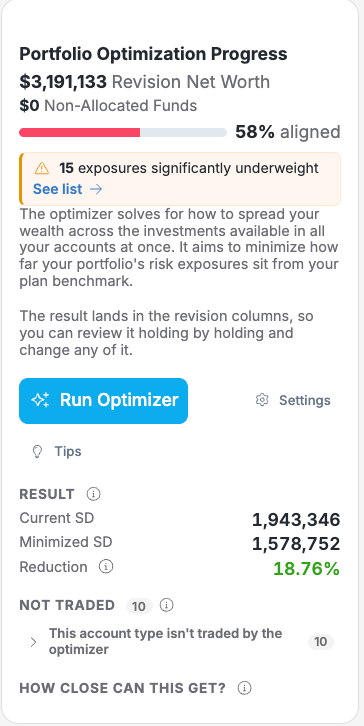
- Portfolio Optimization Progress. How closely your draft is aligned with your benchmark. After a run it shows the before and after, a Still underweight list with a Find link for each gap, and a Not traded list that says why each holding stayed put.
- Portfolio Allocation. Current, In Progress Changes and Benchmark side by side. Open Stocks, Bonds or Cash into sectors, capitalization, style, credit quality and more, and the Workbench columns follow.
- Largest Deviation. Where you are furthest from your benchmark, graded against your own thresholds.
- Yields & Expenses. What the draft does to your yield and your fund costs.
- Preferences and Constraints. Every rule the optimizer is working under, in one place.
- Suggested Portfolio Updates. The trades the run proposes, with share counts and dollar amounts. Turn them into a task list or export them to PDF to work through at your brokerage.


Pin the widgets you watch so they stay in view above the rest.
It tells you what’s in the way, and puts the fix beside it
You don’t have to go looking for problems. When something in your draft needs attention, the page says what it is, where it is and how much, and puts the next step right there.
Cash is the easy example. Leave money uninvested in an account and a note above your accounts names the account and the amount, with Find investments and Move cash out beside it.

There are many more like it:
- Overspent an account. The note names it and offers Move cash in.
- Cash overweight. If your bank accounts hold more cash than your benchmark calls for, the Optimizer shows the figures. It can’t move money out of a bank account, so it points you to Move Cash Out and a tip on excess cash. Before Magpie offers to move bank cash, it asks what you want kept there.
- Still underweight. After a run, every exposure you are still short on, each with a Find link that opens the security finder already searching for it.
- Not traded. Every holding the run left alone, grouped by why: your own rule, the only holding in its account, or an account type the optimizer doesn’t trade.
- What a rule costs. A dollar-amount constraint shows what meeting it means against today’s holding, before you run.
- How close can this get? For a gap your accounts can’t fully close, the closest they can get.
- A stale connection. An account’s icon changes color when its feed is out of date, with a reconnect link right there.
- Changed since you saved. Open a saved revision after closing an account or selling a holding, and it opens without it and tells you so.


Your 401(k) only gets funds it can actually hold
An employer plan only offers its own funds. That goes for a 401(k), a 403(b), a 457, the Thrift Savings Plan and a 529.
Magpie finds your plan’s menu, or asks you for it and tells you where to look, and only adds funds that are on it. The menu is saved with the account. You can see and edit it in the account’s editor, and the security finder leaves an account out when its plan doesn’t list the fund you picked.

New: Optimize for Tax Location
This one is brand new. Once the optimizer has a result, Optimize for Tax Location asks a different question: same holdings, same allocation, which account should each one sit in?
Magpie ranks every holding by yield. Your Roth, tax-deferred and HSA accounts fill first with the highest-yielding holdings, and taxable accounts take the lowest yields last. Every trade happens inside an account. Nothing moves between accounts, and your allocation stays exactly where the optimizer left it.

In this demo household, the highest-yielding bonds move into the IRA and the 401(k), and VUG, the lowest-yielding holding, ends up in the taxable account. Taxable dividend and interest income drops from $18,915 to $8,574 a year. Magpie estimates the tax avoided at about $3,102 a year, using the plan’s 30% effective income tax rate and assuming that income would otherwise be taxed at that rate. The move realizes $0 in capital gains.
One sale stays put. Selling $3,568 of BND would realize an $834 gain, and the net capital gains limit you set for sales in taxable accounts starts at $0. So Magpie leaves it where it is and says why. Set a different limit and it replans against that figure.
Magpie shows you the plan and the change in taxable income, then waits for a yes. You can undo it the same way. It also gives you the order to place the trades in: every sell first, then the buys.
If you used the old Portfolio page
The first time you open the Portfolio Optimizer, a short tour shows you where things went. Holdings changed too: Holdings, By Account now lays out each account the way the Workbench does, with its connection status at a glance. Here is where to look for the rest.
| Old Portfolio page | Now |
|---|---|
| The summary table | Portfolio Allocation, Yields & Expenses and Largest Deviation, beside the Workbench |
| Revision Actions, Load Revision | Saved Revisions, in the Workbench bar |
| Revision sections | Expand an account in the Workbench |
| Descriptive columns | Column sets: Editable Only, Overview and Allocation |
| Pre-Optimization Tips | Tips, beside Settings in the Optimizer widget |
| Buying a home | Add Account, then Home purchase (or Vehicle purchase) |
| Assist | Still underweight, under an optimizer result |
Links and bookmarks to the old page still work. They open the Optimizer if your plan includes the AI Optimizer, and Holdings, By Account if it doesn’t. The Workbench is available on desktop. On a phone, the Optimizer is the chat and the widgets.
Try it
Already a member? Open the Portfolio Optimizer and change something. It’s a draft. You can’t break anything.
Not a member yet? Start your free 14-day trial and see your whole portfolio in one place.
Revisions are hypothetical: nothing is bought or sold on your behalf, and any changes you make to your accounts are yours to decide. Projections, comparisons and tax figures are estimates, not guarantees. Screenshots show demo households.
WealthFluent is not a financial advisor and does not provide investment advice. Platform analytics are tools for informed decision-making.


